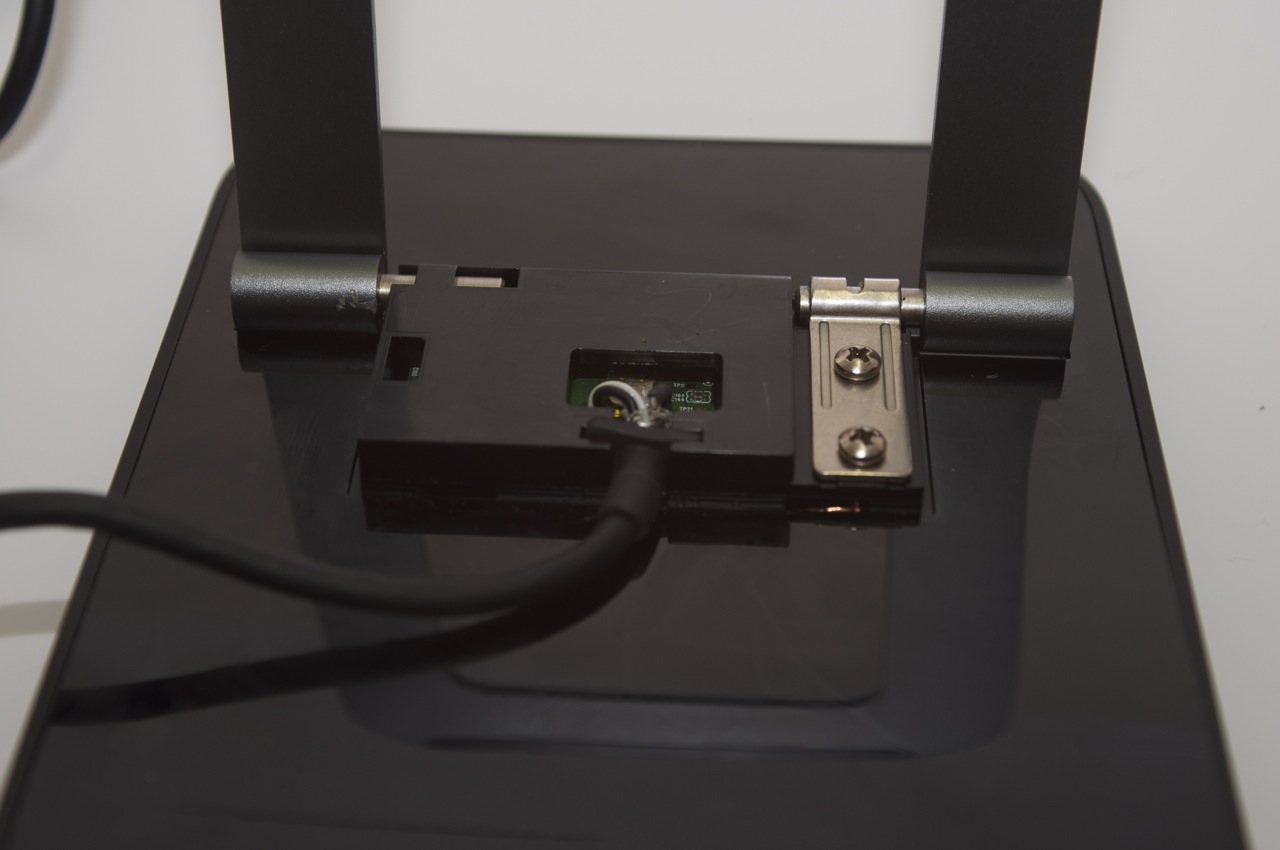
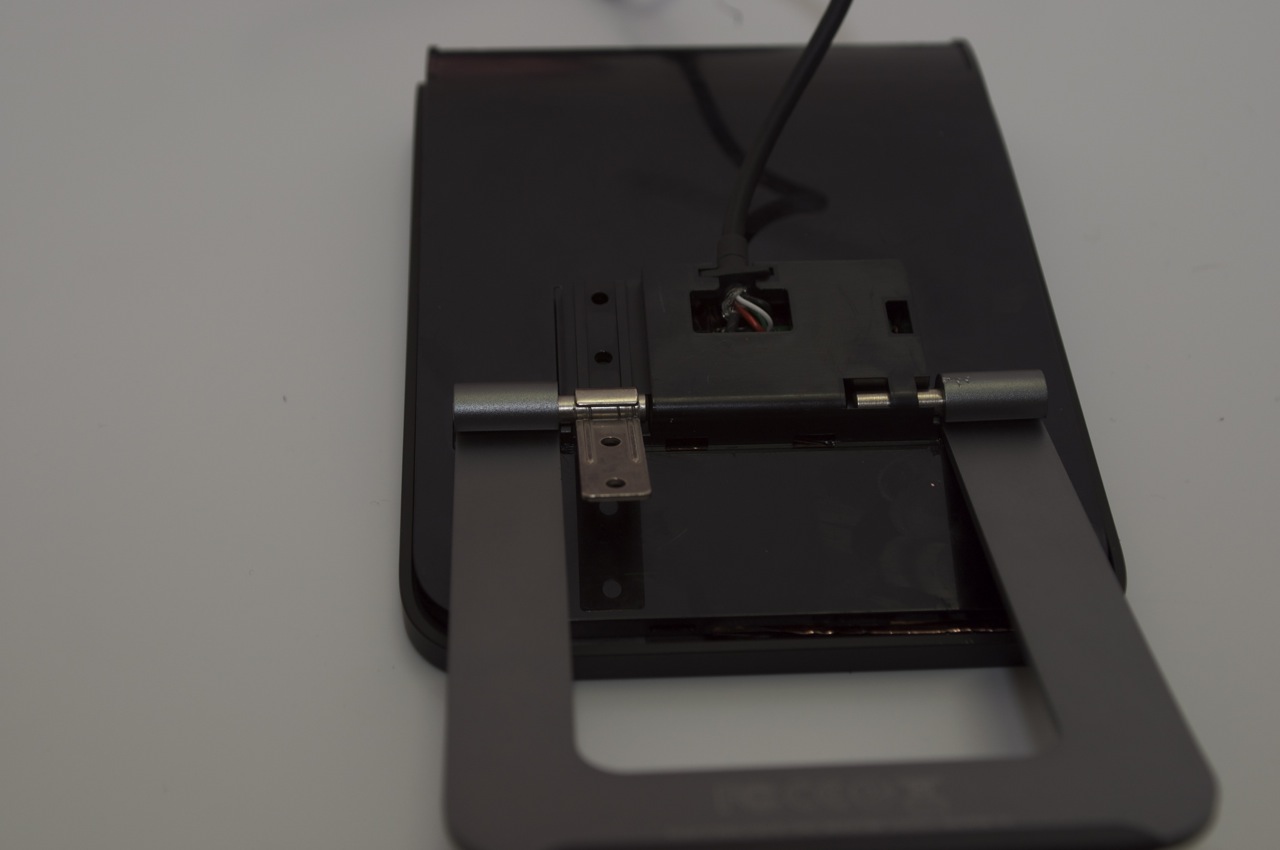
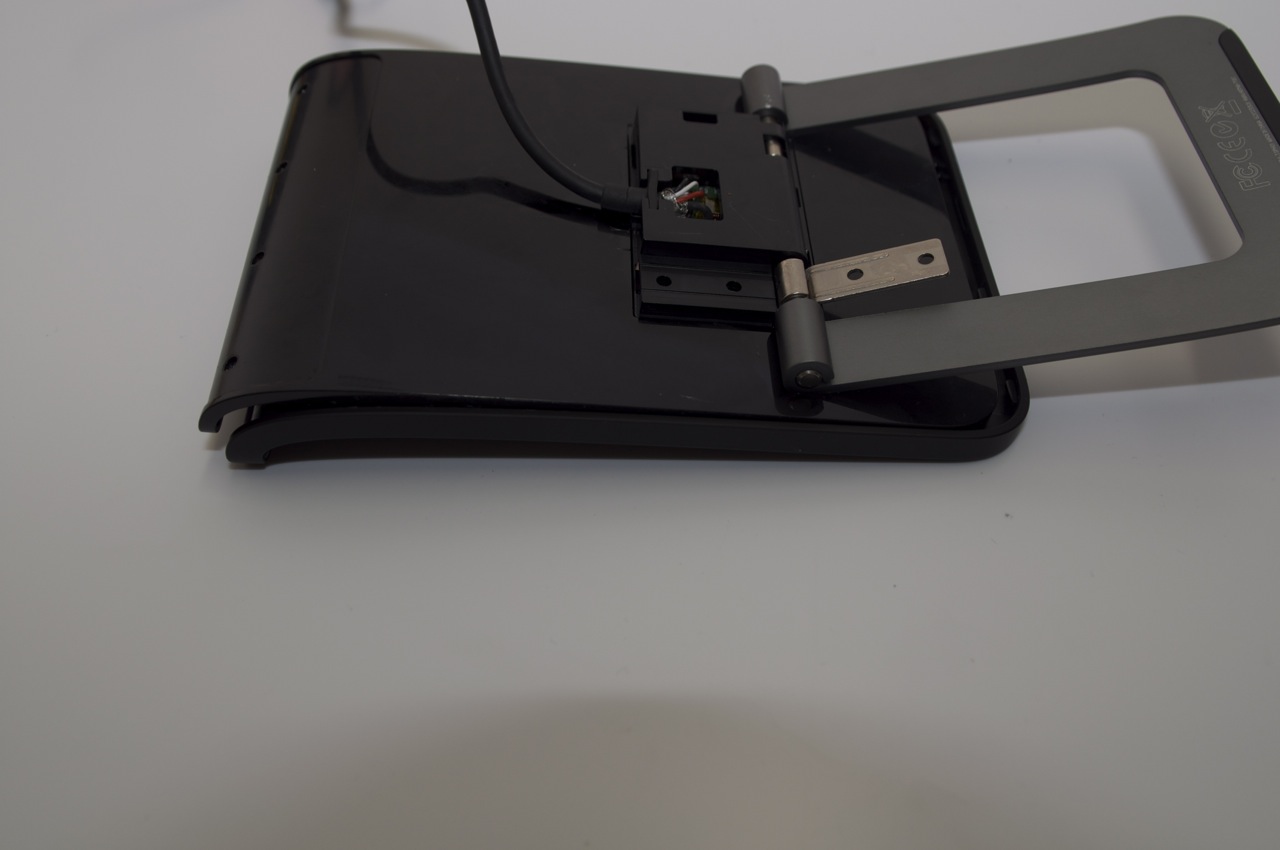
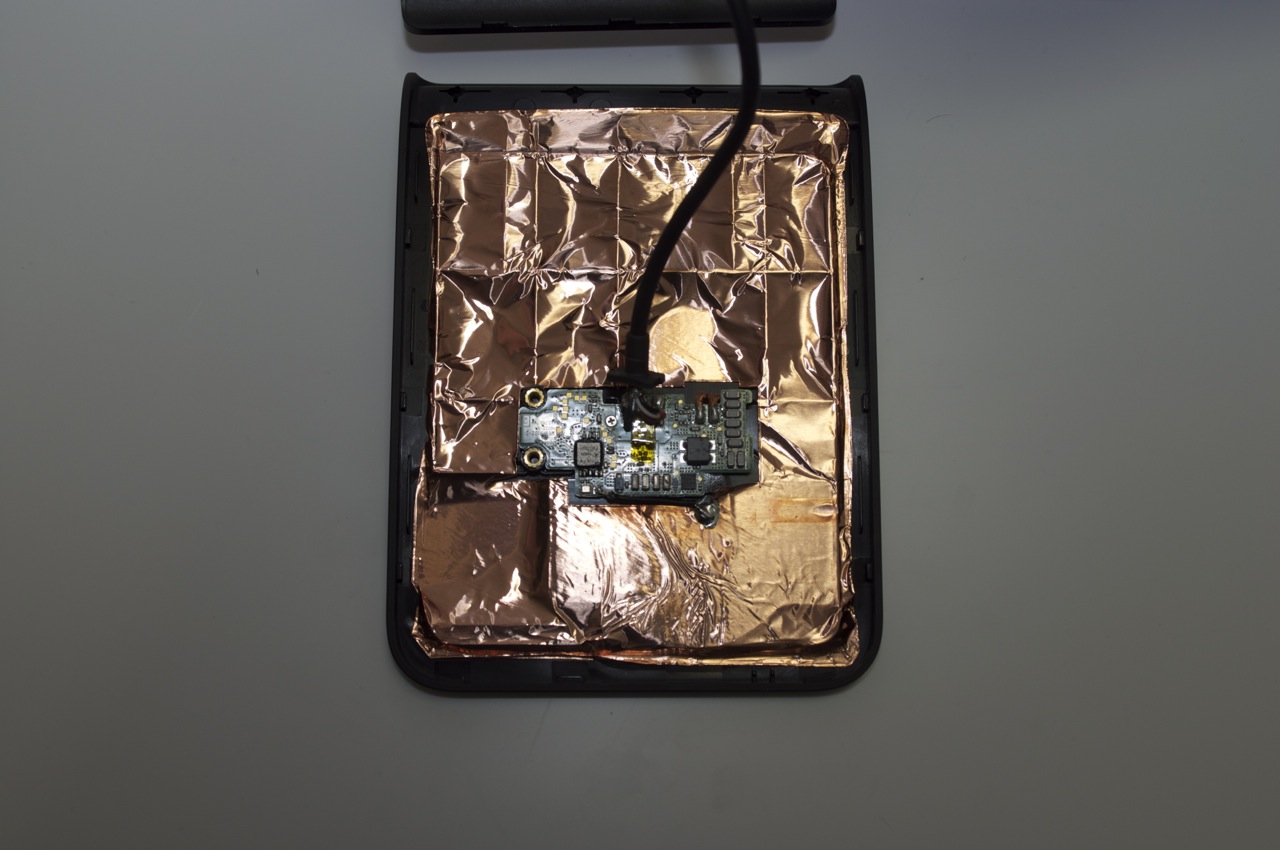
Flashing a Picostation2 HP with open mesh firmware.
Problem: The Boot timeout (in the redboot boot loader) is too short to successfully flash the devices with a non Ubiquiti Firmware. So before you can flash a new firmware we need to increase the timeout.
Ingredients: You are going to need the following files in a folder of your choosing
· putty.exe – download from http://www.chiark.greenend.org.uk/~sgtatham/putty/download.html
· open-mesh-flash.exe – downloaded from http://open-mesh.com/
· breakin.bat and redboot.txt – grab the text below, Note – copy everything BETWEEN the denoting lines, but NOT the denoting lines themselves
— breakin.bat —
echo off
:start
rem ————————————————
ping 192.168.1.20 -n 1 -w 1 > NULL
echo .
IF ERRORLEVEL 1 goto start
rem ————————————————
break
putty.exe telnet://192.168.1.20:9000 -m redboot.txt
— end —
— redboot.txt —
^C
— end —
Method: The idea behind the script is that it will ping the PicoStation2 until it responds and then it launches a telnet session with putty and sends the Control+C command to stop the boot process and give you a terminal.
With that in mind, fire up a command prompt on your windows machine and start running the breakin.bat script.
Once the script is running, plug your PicoStation2 into the network. It should only take a few seconds for the script to break into the boot process. If after 20 seconds you do not have a putty telnet session window open, unplug the device, wait for 20 seconds and try again.
Now that you have a putty telnet session open, you should see similar to the following:
== Executing boot script in 0.090 seconds – enter ^C to abort
^C
RedBoot>
Now that you have a command prompt, you need to run the fconfig command and change the settings. Note: To delete a character, use Control+H (^H) – It does not delete the character on screen, but it does delete the character! Note: Use the enter key to get to the next line (setting)
Here is a screen dump of me changing the config on one of the devices
== Executing boot script in 0.090 seconds – enter ^C to abort
^C
RedBoot> fconfig
Run script at boot: true
Boot script:
.. fis load -l vmlinux.bin.l7
.. exec
Enter script, terminate with empty line
>>
Boot script timeout (1000ms resolution): 1^H2
Use BOOTP for network configuration: false
Gateway IP address:
Local IP address: 192.168.1.20
Local IP address mask: 255.255.255.0
Default server IP address:
Console baud rate: 9600
GDB connection port: 9000
Force console for special debug messages: false
Network debug at boot time: false
Update RedBoot non-volatile configuration – continue (y/n)? y
… Erase from 0xa87e0000-0xa87f0000: .
… Program from 0x80ff0000-0x81000000 at 0xa87e0000: .
RedBoot> reset
So now you have a PicoStation2 with a two second boot timeout it is time to flash it. Use the following steps to get your device flashed. 1. Determine the interface your device it attached to (run the open-mesh-flash.exe without parameters to see a list)
2. Run the open-mesh-flash.exe specifying your interface
3. Plug your PicoStation2 in
4. Watch the magic happen!
Full instructions can be found at this URL http://support.open-mesh.com/activekb/questions.php?questionid=24
Other Gotcha’s
Stuck In Redboot
Run Breakin.bat
Corect
== Executing boot script in 0.090 seconds – enter ^C to abort
^C
RedBoot> fconfig
Run script at boot: true
Boot script:
.. fis load -l vmlinux.bin.l7
.. exec
Broken
== Executing boot script in 0.090 seconds – enter ^C to abort
^C
RedBoot> fconfig
Run script at boot: true
Boot script:
..
Clearing Device For fresh Reflash
RedBoot> fis list
Name FLASH addr Mem addr Length Entry point
RedBoot 0xA8000000 0xA8000000 0x00030000 0x00000000
linux 0xA8030000 0x80041000 0x00660000 0x80041000
FIS directory 0xA87E0000 0xA87E0000 0x0000F000 0x00000000
RedBoot config 0xA87EF000 0xA87EF000 0x00001000 0x00000000
RedBoot> fis init
About to initialize [format] FLASH image system – continue (y/n)? y
*** Initialize FLASH Image System
… Erase from 0xa87e0000-0xa87f0000: .
… Program from 0x80ff0000-0x81000000 at 0xa87e0000: .
RedBoot> fis list
Name FLASH addr Mem addr Length Entry point
RedBoot 0xA8000000 0xA8000000 0x00030000 0x00000000
FIS directory 0xA87E0000 0xA87E0000 0x0000F000 0x00000000
RedBoot config 0xA87EF000 0xA87EF000 0x00001000 0x00000000
RedBoot>
Attempt a reflash with openmesh